Payables for freight & logistics teams

From inbox to QuickBooks, minus the busywork.

BillGate collects your vendor bills, fills them in, sends each one to the right approver and posts it to QuickBooks Online.

What slows your payables down today?

Reviewing them
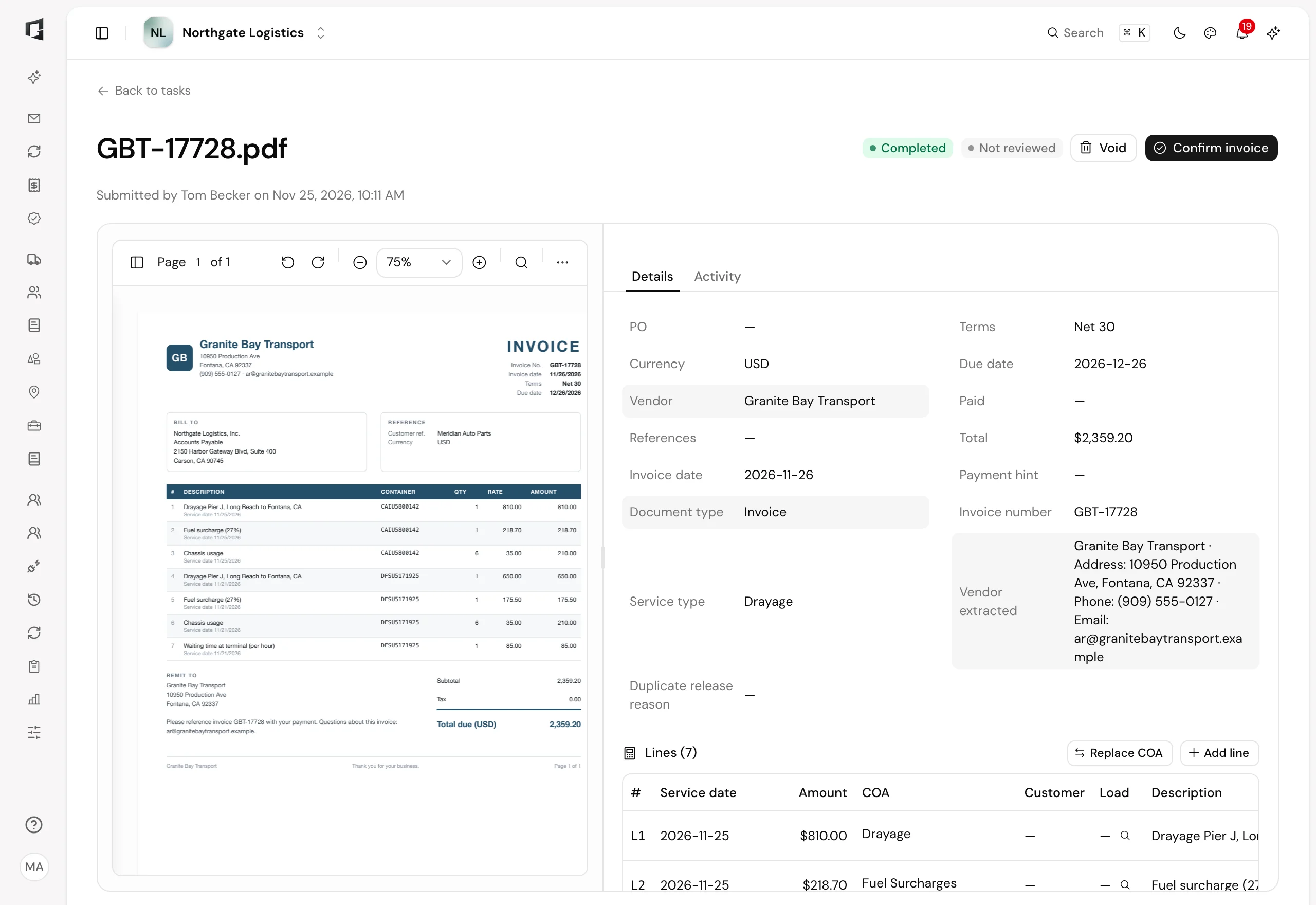
A vendor invoice next to the fields BillGate filled in
Book a demo

Bring your own bills. We run them live on the call.

Works withQuickBooks OnlinePortProGoFreightGmailMicrosoft 365

One board for every bill

See what is stuck, what is moving and what is done.

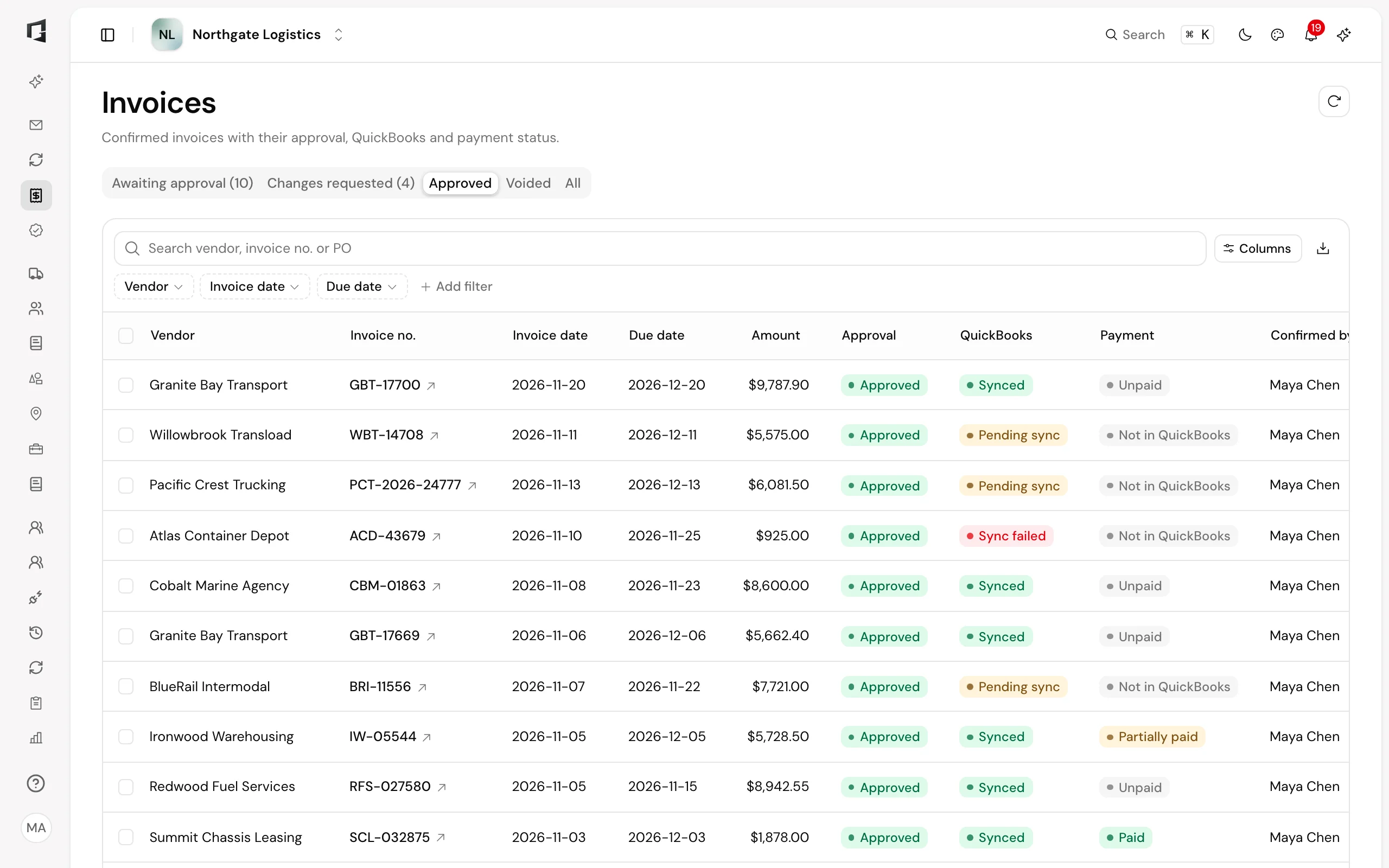
Every bill carries three statuses, side by side: approval, QuickBooks and payment. A bill that was approved but failed to sync cannot hide behind a green tick.

Needs someone3 bills

InvoiceVendorAmountApprovalQuickBooksPayment
ACD-43683Atlas Container Depot$5,295.00Changes requestedNot readyNot in QuickBooks
KCB-E25058Keystone Customs Brokers$38,836.49Final reviewNot readyNot in QuickBooks
ACD-43679Atlas Container Depot$925.00ApprovedSync failedNot in QuickBooks

On its way2 bills

InvoiceVendorAmountApprovalQuickBooksPayment
GBT-17700Granite Bay Transport$9,787.90ApprovedSyncedUnpaid
IW-05544Ironwood Warehousing$5,728.50ApprovedSyncedPartially paid

Done1 bill

InvoiceVendorAmountApprovalQuickBooksPayment
SCL-032875Summit Chassis Leasing$1,878.00ApprovedSyncedPaid

Watch it happen

One bill, start to approved, in 20 seconds.

A real recording of BillGate with demo data. No mock-ups.

  1. 0:00A bill sits in Tasks, already read
  2. 0:04Vendor, dates, totals and lines are filled in
  3. 0:08Confirm it and it becomes an invoice
  4. 0:12It shows up for the approver
  5. 0:17Approved. The next one opens by itself

How it flows

Four steps. Your team only does the thinking ones.

1

Capture

Bills arrive on their own

Forward vendor emails to your BillGate address, connect a Gmail or Microsoft 365 mailbox, or drop in PDFs and photos. Every document becomes a task your team can see.

  • A forwarding address for each company
  • Read-only mailbox connections
  • PDF, image and multi-invoice files
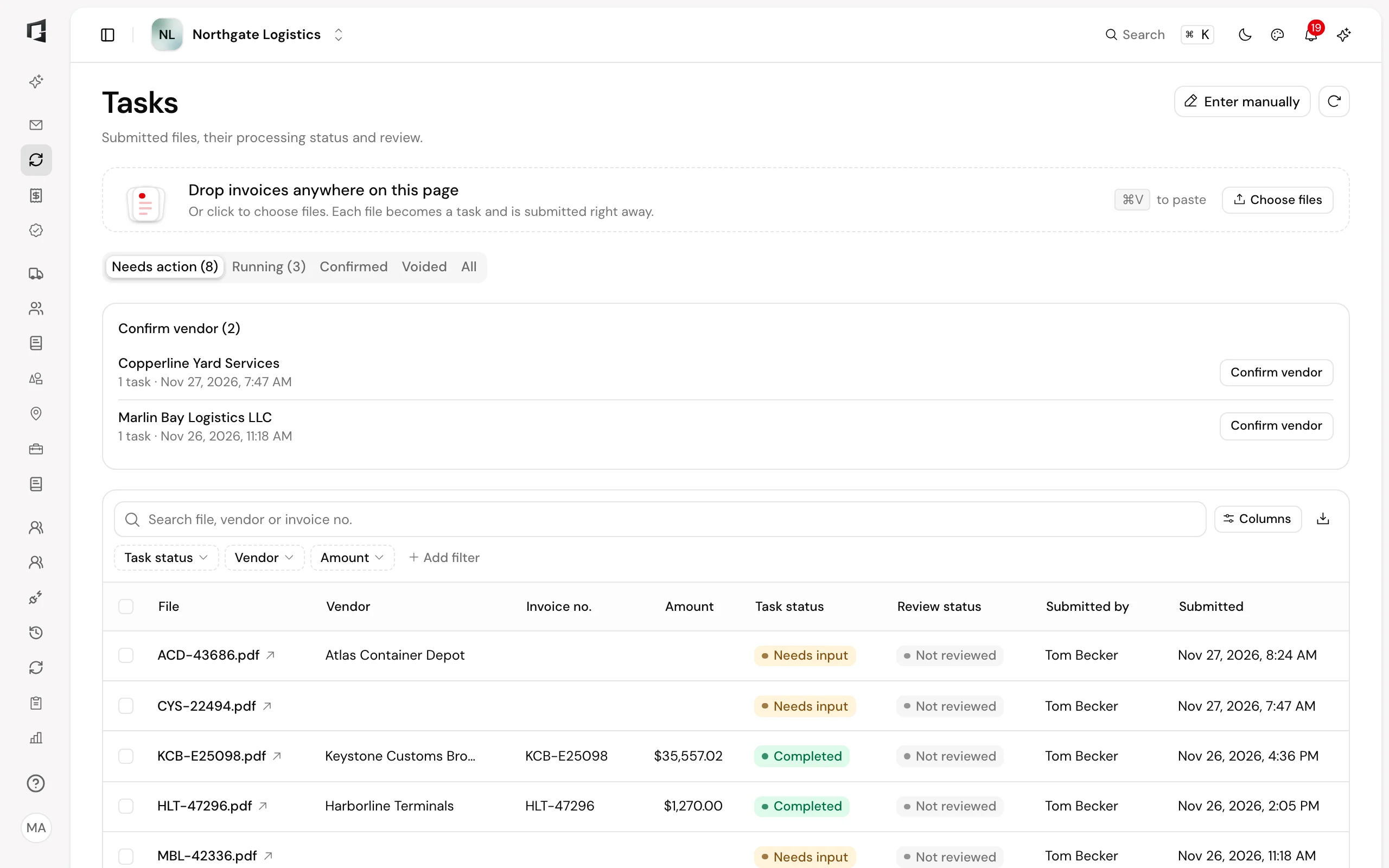
The BillGate task list with incoming vendor bills and their status
2

Review

Filled in before you open it

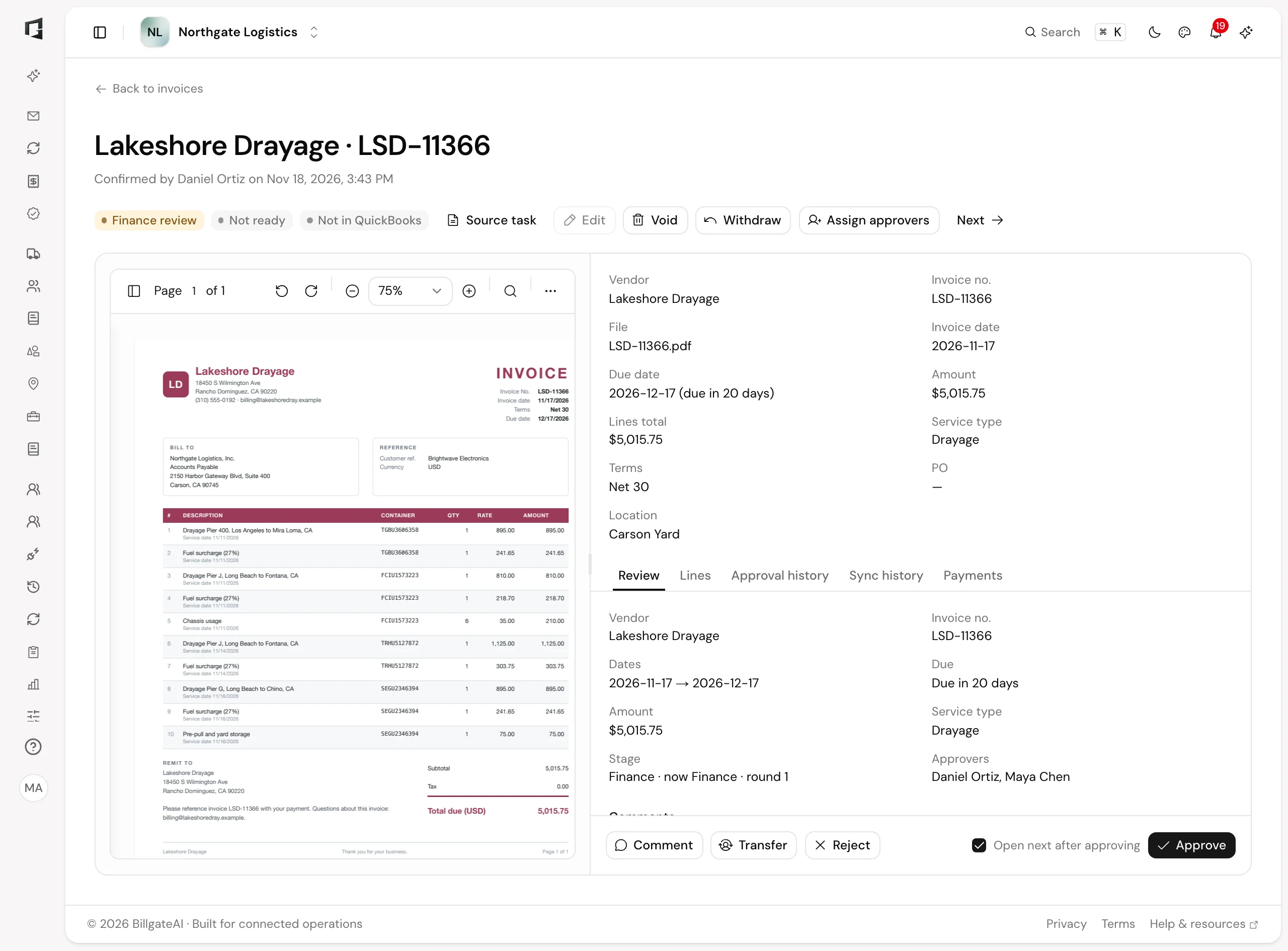
Vendor, invoice number, dates, line items and totals sit next to the original document. BillGate stops and asks only when something needs your call.

  • Original document beside every field
  • Lines coded to your chart of accounts
  • Duplicate invoice numbers caught
A vendor invoice PDF next to the fields and line items BillGate filled in
3

Approve

Approval that follows your rules

Finance signs off first. A Final approver steps in when your rules say so: by amount, by vendor, by service type. A rejection always carries a reason.

  • Finance, then Final when rules require it
  • Separation of duties built in
  • Bulk actions checked as a whole
An invoice awaiting approval with approve and reject actions
4

Post

Straight into QuickBooks

Approved bills post to QuickBooks Online as Bills. When a payment is recorded there, it shows up on the invoice in BillGate, so nobody keeps a second list.

  • Vendors, customers and accounts stay in sync
  • Bills posted from the approved invoice
  • Payment status read back automatically
The BillGate invoice list with approval, QuickBooks and payment status columns

For your team

Everyone gets their own lane.

Five roles, set per company. People see the work that is theirs and nothing they should not touch.

A

Admin

Sets up companies, members, integrations and approval rules.

F

Finance

Reviews bills, gives the first approval, posts to QuickBooks.

FA

Final approver

Signs off the bills your rules send upstairs.

S

Submitter

Uploads and confirms bills, then hands them on.

RO

Read only

Sees everything, changes nothing.

Assistant

Ask it like you would ask a teammate.

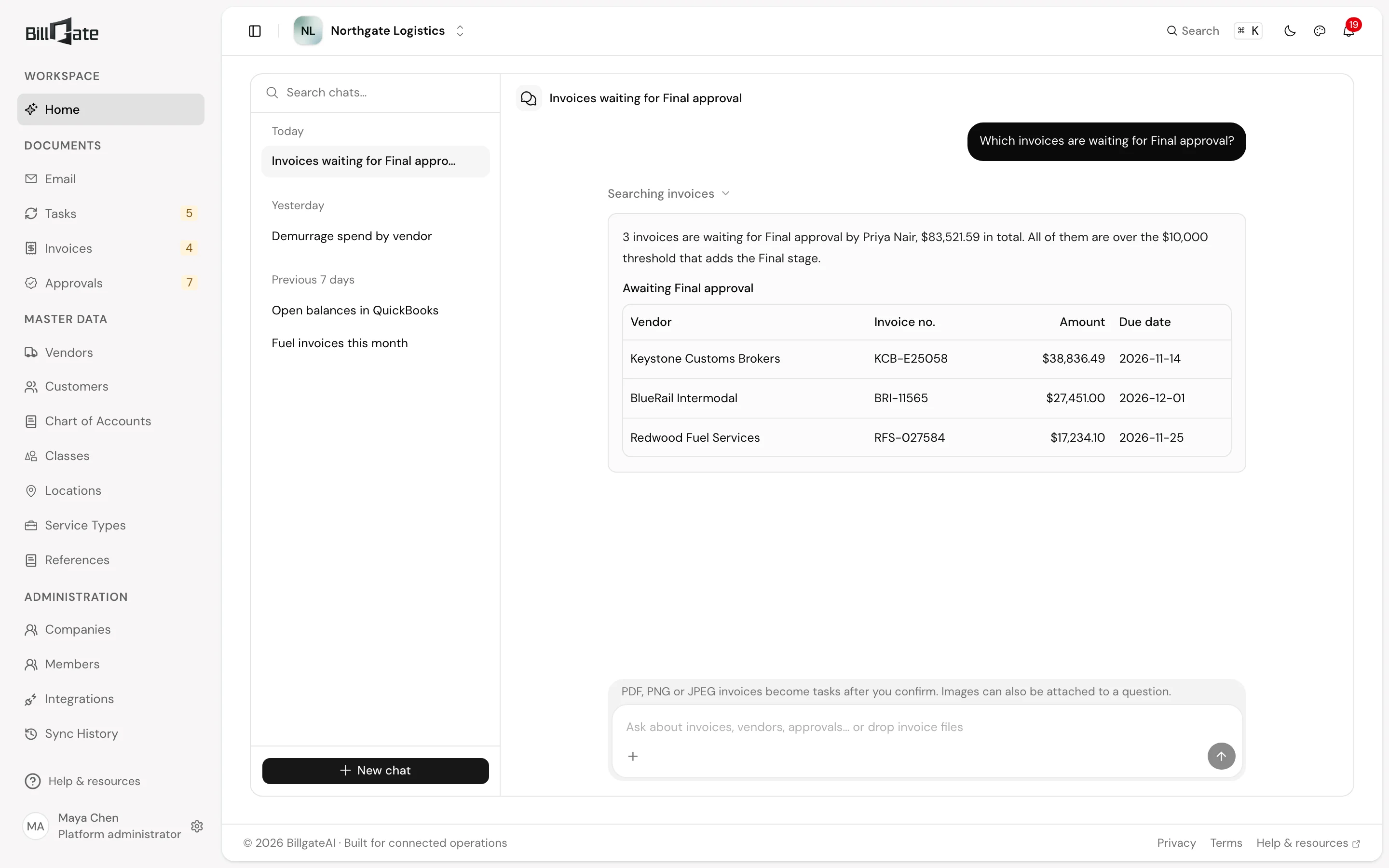
  • Which invoices are waiting for Final approval?
  • Demurrage spend by vendor
  • Open balances in QuickBooks
  • Fuel invoices this month
The BillGate assistant answering which invoices are waiting for Final approval

Heads-up emails

Nobody finds out late.

  • A bill is waiting for your approval
  • A bill was sent back, with the reason
  • A QuickBooks sync failed
  • A connection stopped or is about to expire
BG

Waiting for your approval

BillGate · to Daniel Ortiz

Lakeshore Drayage · LSD-11366 for $5,015.75 was confirmed and is ready for Finance review.

Open the invoice

Each company chooses who gets which email. Each person can turn their own off.

Integrations

Plays nicely with the tools you already use.

Accounting

QuickBooks Online

Two-way sync for vendors, customers and the chart of accounts. Approved bills post as Bills; payments are read back.

Drayage TMS

PortPro

Connect your PortPro account so the loads behind a bill are on hand while you review.

Forwarding TMS

GoFreight

Connect GoFreight to bring shipments and customers alongside your payables.

Mailbox

Gmail

Read-only connection. BillGate picks up vendor bills and never sends, labels or deletes.

Mailbox

Microsoft 365

Read-only connection to the shared AP mailbox your vendors already write to.

Intake

Email forwarding

A dedicated address per company. Forward a bill, or set an auto-forward rule once.

Coming soon: NetSuite and CargoWise

Safe by design

Friendly on the surface. Strict underneath.

Each company on its own

Vendors, accounts, approvers and bills belong to one company. Switching company switches everything.

Five clear roles

Admin, Finance, Final approver, Submitter and Read only. Permissions are enforced on the server, not just hidden in the menu.

Separation of duties

Stop the person who submitted a bill from approving it. One switch in Approval Settings.

A trail behind every bill

Who confirmed it, who approved it, when it posted and what came back. Deleted bills stay on the record.

Currencies never mix

USD and CAD are totalled separately everywhere. Amounts are stored to the cent, never rounded in flight.

Invitation only

People join by invitation from a company admin. Mailbox access is read-only, and integration tokens are stored encrypted.

Good questions.

Which accounting system does BillGate work with?

QuickBooks Online. Vendors, customers and the chart of accounts sync in both directions, approved bills are posted as Bills, and payments recorded in QuickBooks are read back onto the invoice.

Does BillGate pay my vendors?

No. You keep paying from QuickBooks or your bank as you do today. BillGate shows whether each bill is unpaid, partially paid or paid, so approvers and AP see the same picture.

How do bills get in?

Three ways: upload files, forward emails to the address BillGate gives each company, or connect a Gmail or Microsoft 365 mailbox. Mailbox connections are read-only.

What happens when BillGate is not sure about something?

It tells you. The field is flagged on the task and the bill waits for a person. Nothing becomes an invoice until someone on your team confirms it.

We run more than one company. Does that work?

Yes. Each company has its own vendors, accounts, approvers and QuickBooks connection, and people only see the companies they were invited to. USD and CAD totals are never combined.

Can we decide who approves what?

Yes. Every bill goes to Finance. You choose when a Final approver is also required: above an amount, for certain vendors, or for certain service types.

Does it connect to our TMS?

BillGate connects to PortPro and GoFreight today. If you run something else, tell us on the demo call.

How do we get started?

Book a demo. Setup is a short checklist: connect QuickBooks, bring in vendors and accounts, choose your approvers, and send in your first bill.

Ready to clear the bill pile?

Book a demo, bring a week of real vendor bills, and watch them go from inbox to QuickBooks.